In past days most of people worked with the desktop or laptop devices instead of smart phones.They used various methods in file transferring like put files in a USB pen drive and connecting with the needed device, sharing folders on the local network, making wireless ad-hoc networks to share files etc. But with the increase of smart phone users data transmission among all kinds of devices was essential.Fortunately, there were lots of apps designed to solve this and Zapya can be introduced as the most popular and best wireless file transfer solution for smart phones. Zapya is a decent mobile file transfer application which has not been limited for iOS devices but also for Android devises. It is a free transferring app originally released in 2012. Zapya has become most popular tool because of its superior performance. When comparing with contemporary similar mobile transfer tools and application manager tools, Zapya takes the first rank as it appears as all-in-one file transfer unit.
Download Zapya
This app supports various file formats including image, videos, music, docs, presentations, compressed folders and many more. While being a user friendly file transfer tool it also works as a good file and application manager tool that includes installing, launching, un installing, deleting, backing-up.
File transfer modes available with Zapya
- Android to Android
- Android to iOS
- Android to Windows PC
- Android to iMac
- iOS to iOS
- iOSto Android
- iOS to iMac
- iOS to Windows PC
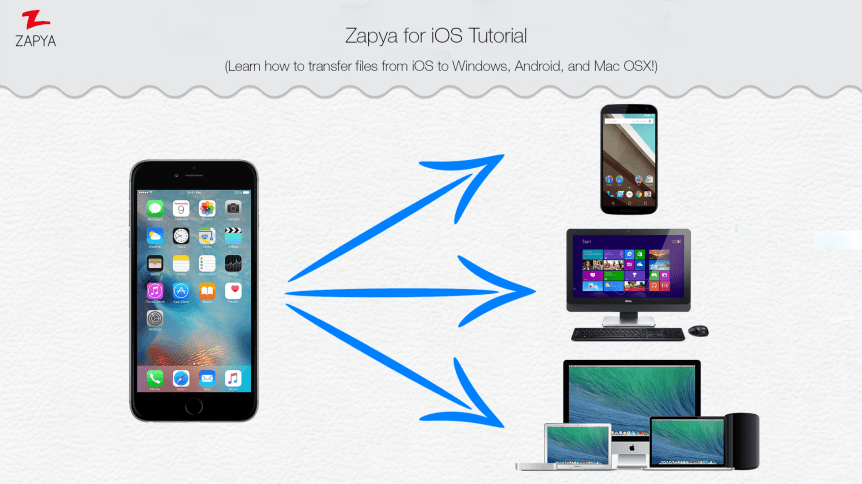
This app can use for sharing data among multiple nearby devices up to 5, using Wi-Fi network or Wi-Fi hotspot available in one device.
Steps to follow when sharing files from iOS to Android
- Install the app on devices that needed to connect (all devices must be connected with same Wi-Finetwork or hotspot).
- Launch it on all the devices.
- In the menu select connect to other device and tap on connect to iOS device.
- Then you will connect to the Wi-Fi network on the iOS device and launch the Zapya app.
- Select search and go to the pop-up menu and select the name of related devise listed on the “Android app”.
- Devices are connected now and able to share your files.
You can follow the same steps to share files from your Android to iOS. When Sharing files from Android to Android, Wi-Fi connection or 3G 4G connection is not necessary. Steps are as following
Android to Android
- After installing the app create a group in one device, tapping the blue button on the bottom of the screen.
- Other device need to search for the group tapping the same button.
- When devices are connected you can easily transfer your files.
When sharing files from Android to PC, follow these steps
- Open up Zapya and first find the user name and the password of the PC.
- Then open Zapya on your Android and click the red button “search and join”.
- Find the username and the password of PC and click on it.
- Then your Android and PC will be connected and you can share your files.
Steps to share files from Android to Mac
- First ensure that both devices are connected to the same Wi-Fi hotspot or network and then open the Zapya app.
- Click the blue button and select “create a group”.
- After mac is connected to your android, find the Android name on the Mac and click on it.
- Now the main screen will reappear and you can start the work.
iOS to Mac
- As the above steps connect with Zapya and click the button “connect to friends”.
- On the iOS screen you will see a list of all the devices connected to same Wi-Fi network.
- Find the name of the Mac and select it to connect
- The main screen of mac will reappear and let you share your files.
Sharing files from iOS to PC
- Open Zapya on the PC find the username and the password.
- Go to your iOS device settings.
- Sign-in to Wi-Fi that matches the PC username
- Open Zapya on the iOS.
- When connecting to the PC network The PC icon will display on the main screen of iOS.
- Now you can transfer your files.
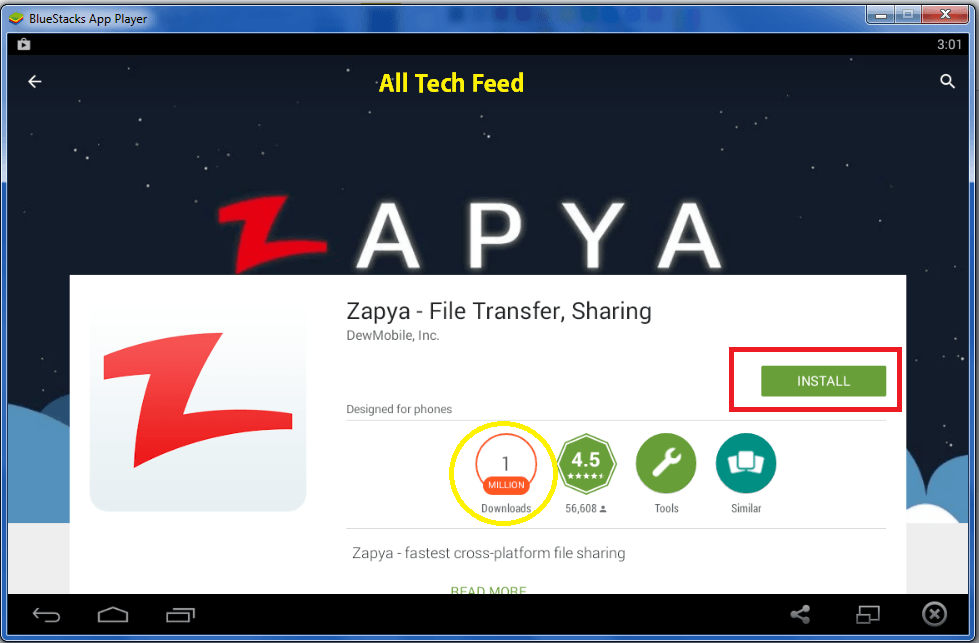
The Zapya app has made a major development in file transferring technology, to make people say bye-bye to Bluetooth and other uncomfortable, time wasting file transferring options. SoYou are kindly invited to experience Zapya and feel the smart technology.
"This is sample testimonial from a sample source." -- Sample Client, Location
"This is another sample testimonial from another sample source." -- Sample Client, Location
